Aloha and Welcome
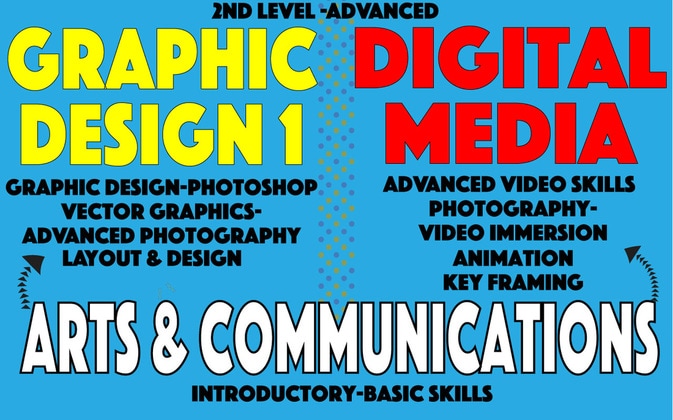
Arts &amp; Communications Pathways<br />M-101 Lab- Kealakehe High School
  • Assignments
  • Video Tutorials
  • Contact
  • Video Gallery
  • Resources
  • Student Work
  • Home
  • Teacher Resources 2014-2015
  • Links
  • Drone ELO/CLUB
  • Bar Codes
    • SUBMIT YOUR WORK

Tasks Thursday 10/30/14

10/30/2014

0 Comments

 
1. 1st 30 minutes of class are CLEAN UP TIME--
Use your time wisely and finish up any tasks you have left like:
a. Finish Mag Cover- b.Finish Photo Collage C. Put all of your work into your website under MY WORK heading ..writing a one paragraph reflection about what you made, and what you learned.
2. Last Hour of Class- Begin New Quick Project-- 
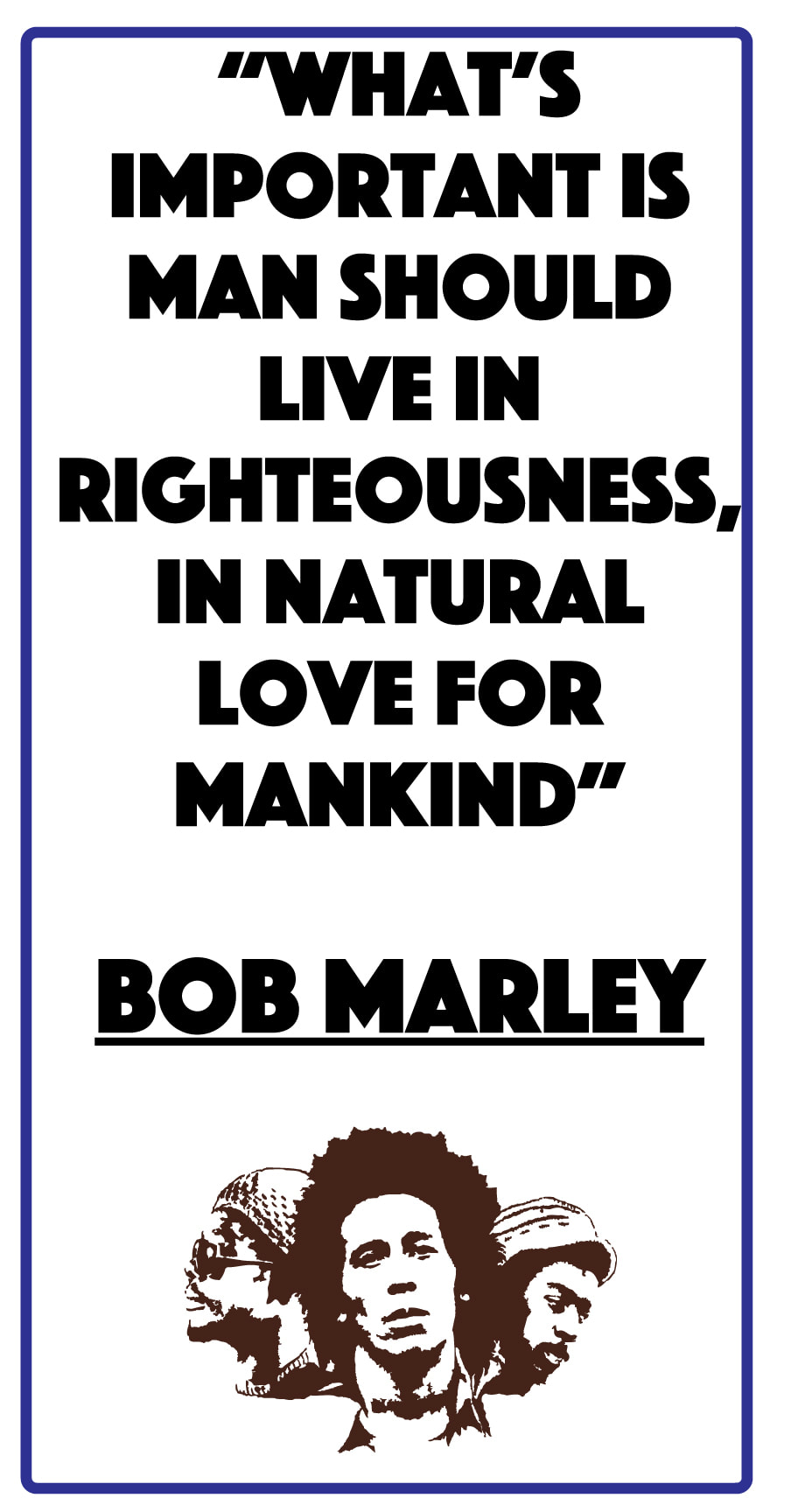
Quotes Poster- The idea is to learn more about typography..and to use and have more experience about using layer styles to make your words stand out more..
 Go on the web to google- type in "inspirational quotes"
You find 5 quotes you like and copy and paste them into your template document.


Use different layer styles to make your words stand out-
Experiment-Use no more than 2 different fonts or typefaces......
Due by Friday


quotes_poster_template.pdf
File Size: 10358 kb
File Type: pdf
Download File

Picture
0 Comments

TASKS 10/28/14

10/28/2014

0 Comments

 
1. Click on and take the SPIRIT WEEK MAGAZINE COVER 2014 survey at quia.com
Your answers help us to tweak the curriculum and make this class better for all students.
2. You will get a rough draft rubric form BACK from me today so that you can make adjustments and changes to your final design.
3. Fill out the HABITS OF MIND reflection (required by da school) for this project..
This is a paper reflection and we keep all your answers for evidence for the school and DOE.
4. Go to your personal portfolio website, and add your magazine cover in .pdf format..and write a 1 paragraph reflection explaining what this project was, and what new skills and concepts you learned doing this project.
SURVEY-Period 4
SURVEY-Period 5
SURVEY- Period 6
Picture
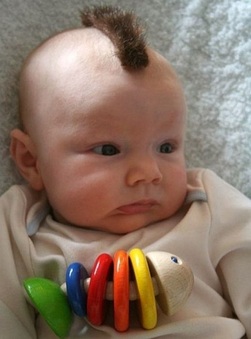
WHAT You Looking At?
0 Comments

Tasks-10/27/14...

10/27/2014


DO THE RIGHT THING TODAY PEOPLE...
Be Nice and Respectful....Do Your Work...Follow All Instructions

Picture
1.  FINISH creating your Spirit Week Magazine Cover...use your time wisely
>>>>

2. Do a FILE>SAVE AS and save your magazine cover document in .pdf format with your name in the final file name like---  bjones mag cover 2014.pdf
>>>>
3. FILL out your personal copy of the MAGAZINE COVER RUBRIC ...the sub should have handed this out when you came in...and `TURN THIS BACK IN TODAY to the sub for a grade,,,,,
Be Fair and Honest when you evaluate yourself...and write in any comments you have for me..


4. Use the SUBMIT YOUR WORK link to send me your cover document in .pdf format
NOTE>>>This might not work due to the FILE SIZE,,(MB's)..but try anyway...


ALOHA

Tasks 10/24/14

10/24/2014

0 Comments

 
1. Work on Magazine Cover Project ---- 
2. 10 minutes before class ends, do a FILE>SAVE AS... and save as .pdf (Photoshop PDF)
3. Put on and save to a class jump drive/ and or....go to class web site, and use the
SUBMIT YOUR WORK link.
4.  DOWNLOAD and READ the RUBRIC (grading guide) to the right>>
5. REVIEW the MAGAZINE ESSENTIALS article (to da RIGHT>)
 to check what your magazine needs....

6. READ THE CRAP.pdf to the RIGHT>> 
to REFRESH your mind about Graphic Design Principles


You will get a ROUGH DRAFT grade on a copy of the rubric....
Your job will then be to FIX ANY PROBLEMS in your ROUGH DRAFT,

and then turn in the FINAL COVER by the beginning of class on TUESDAY Oct. 28th
for FULL CREDIT
magazine_cover_rubric.pdf
File Size: 1853 kb
File Type: pdf
Download File

magazine_essentials-storyboard.pdf
File Size: 1632 kb
File Type: pdf
Download File

graphics-bar-code-2014.jpg
File Size: 44 kb
File Type: jpg
Download File

0 Comments

Tasks 10/23/14

10/22/2014

 
1. Click here to read about Dodge & Burn Tools in Photoshop CS6
2. Open Photoshop....>>>>>Download and Open the Pic/file to the right
3. Follow Mr Shelor and do tutorial on Dodge & Burn Tools
4. Download the BAR CODE and the SCHOOL LOGO below for the magazine project


5. Click here to view our Spirit Week 2014 PICTURE GALLERY
Large Definition pics

tutorial-pic.jpg
File Size: 1638 kb
File Type: jpg
Download File

logo_school-2014.png
File Size: 565 kb
File Type: png
Download File

graphics-bar-code-2014.jpg
File Size: 44 kb
File Type: jpg
Download File

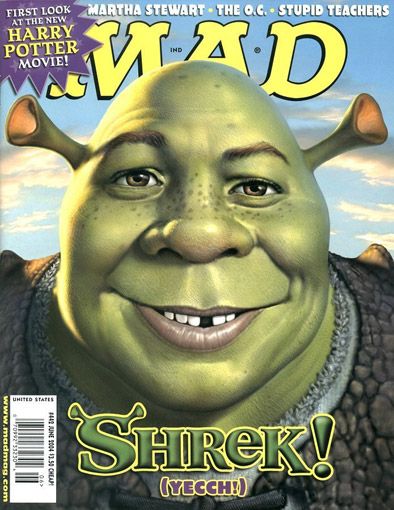
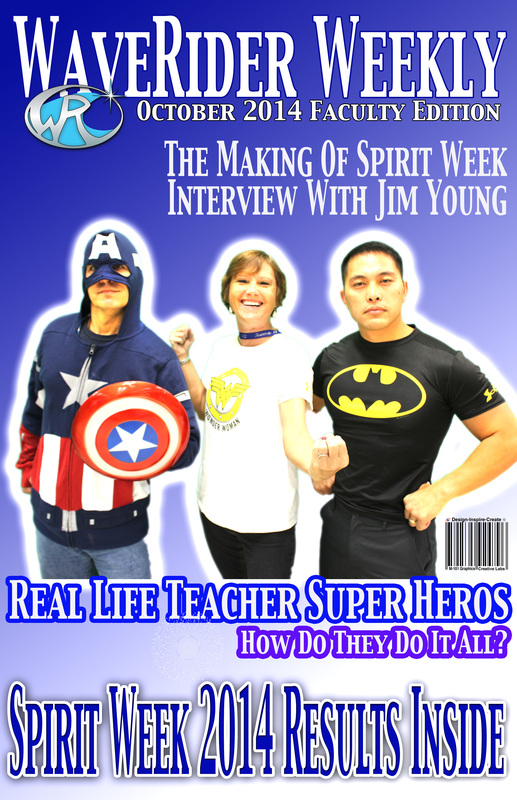
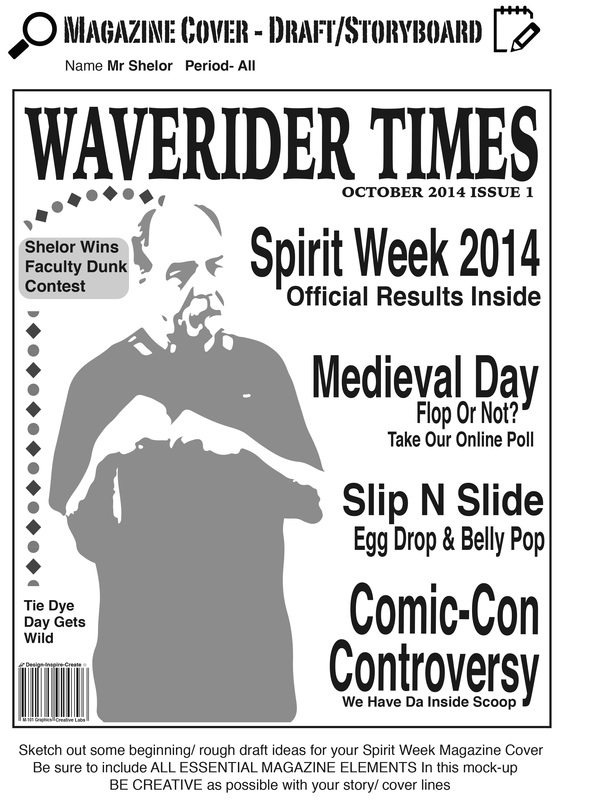
Spirit Week Magazine Cover Example 2014 Kealakehe High School

Picture

Spirit Week Magazine Cover 2014 Kealakehe High School

10/20/14 Tasks

10/20/2014

0 Comments

 
1, Discuss  Spirit Week Magazine Cover project 2014 Specifications
2. Go over Character Palette, and Layer Styles in Photoshop
spirit_week_poster_project_2014.pdf
File Size: 2164 kb
File Type: pdf
Download File

Picture
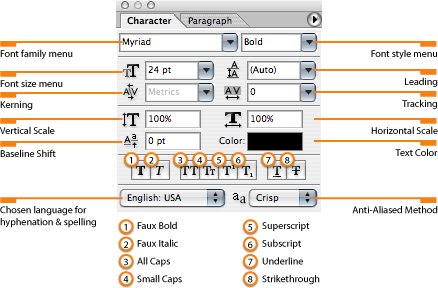
From top-left down, the first three options are fairly self explanatory. The Font family menu allows you to choose—from a list of your currently installed fonts—a font face, theFont style menu allows you to choose—if the selected font face has it built-in—a font style (bold, italic, and so forth), and the Font size menu allows to to set the size of the selected text.

Leading

Leading is the amount of space between lines of text. To adjust the leading, simply select a line(s) of text, and either type in a leading value in the leading field of the character palette or click on the leading arrow and select a leading pt increase or decrease the leading.

Kerning

Kerning is the amount of space between individual letters. Usually, kerning is used to make minor spacing adjustments between specific letter pairs. The font designer—when constructing a font family—usually specifies a default kerning. To use the default, font designer specified kerning, select Metrics or Optical from the kerning pull-down menu in the Character palette. However, if you want to apply your own kerning, using your Typetool, simply click in between the letters where you want to adjust the kerning. Then either type a value in the kerning field or click on the kerning pull-down menu and choose a value.

Tracking

Similar to kerning, tracking sets the amount of space between letters. However, tracking is used not so much on a per-letter-basis, but more on specifying the space between letters for a whole word or sentence. To set the tracking, select the text that you want to adjust, and either type a value in the tracking field or click on the tracking pull-down menu and choose a value

Color

Within the Character palette, you can also change the color of a selected letter, word, or paragraph. To change the color of some text, select it using the Type tool, and click on theColor swatch in the Character palette. This will open the familiar Color Picker window where you can choose any color you'd like. When you've selected the color you want, simply click OK to close the color picker window and you've just changed the color of your selected text. You can also change the color of all the text in a layer by selecting the text layer in your Layers palette, and changing the color using the method I just described

Layer Styles in Adobe Photoshop CS6

Picture
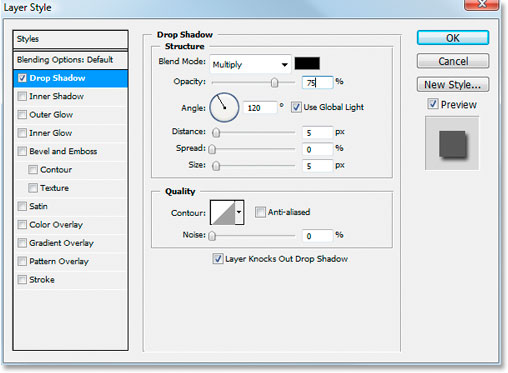
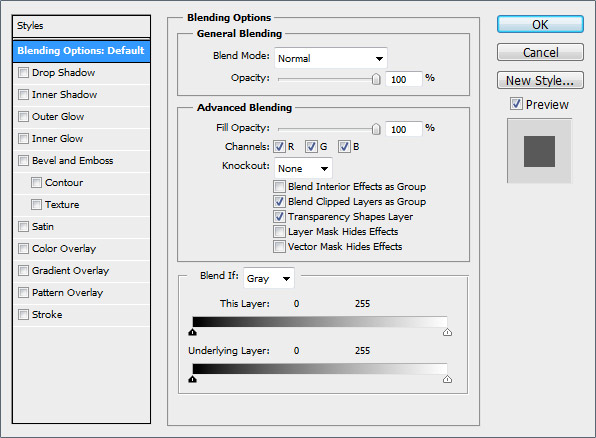
To get to this palette- go to LAYER>LAYER STYLES on the top menu bar
Create a new Photoshop document and in addition to the default background layer, create a new line of text. In the Layers Palette, right click the name of the layer you want to add effects to and click "Blending Options..." to bring up the Layer Style dialog box (you can also double click the name of the layer in the Layers Palette).

We will go over each section of the Layer Styles dialog box in the latter parts of this guide, right now, we are just getting acquainted with how they are applied.

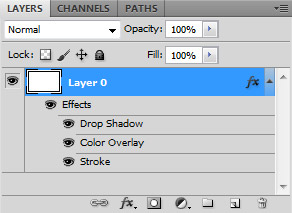
You will notice that once you add a layer style to your layer, a list of effects that are being used shows up in the layers palette. You can show/hide each of the effects by clicking the eyeball icon next to the name of each effect. This allows you to quickly hide a specific effect, while keeping the settings intact in case you want to turn it back on.

Picture
Tips And Tricks For BeginnersThere are a few tricks to learn when becoming proficient with layer styles that only come with experience, unless of course you are reading this guide.

  1. Layer styles cannot be added to locked layers. You may have created a new document, selected the background layer, and clicked a layer style preset, only to see a whole bunch of nothing happening. It is because the background layer is locked. You cannot add new layer styles to locked layers. You can, however, add layer styles to a layer prior to locking it to prevent editing of that layer. You can then unlock it later if you decide to change the settings of your layer style later.
  2. You can increase the size of the thumbnails in the Styles Palette by opening the Styles Palette dropdown menu and toggling the display type between Text Only, Small Thumbnail, Large Thumbnail, Small List, and Large List.
  3. Most layer styles are created to look their best on bolder fonts and/or at larger sizes. If you apply a style you found online and are unhappy with how it looks, you might want to try a different font or a larger text size.
  4. Layer styles themselves can be resized, so if you find a layer style that looks good at a certain size but want to shrink your text, you can resize the effect to match any size of text. Simply right click the list of effects that are applied to the layer in the Layers Palette and click "Scale Effects". You can then scale your effects using a percentage.
  5. You can copy and paste styles between layers in the same document as well as between layers in different documents. Right click the name of the layer in the Layers Palette and click "Copy Layer Style", then on another layer, right click again and select "Paste Layer Style".
  6. You can hide the layer contents while showing only the effects. Select the layer in the Layers Palette and change the Fill, located at the top of the Layers Palette, to 0%. You can then apply effects without the layer itself showing up. This is how many glass and other advanced effects are created.
0 Comments

Tasks For Today Thursday 10/16/14

10/15/2014

0 Comments

 
1. Download & Look At Magazine Essentials Presentation--
Take Cornell Notes & Write Down the Important Parts
2. Download & Read 8 Essential Techniques to Make Your Cover Rock
Take Cornell Notes & Write Down The Important Parts
3. Began Sketching Out a Rough Draft Magazine Cover

Turn in Notes & Draft Cover for a 10 point grade.....


Spirit Week Photo Gallery
magazine_essentials-storyboard.pdf
File Size: 1632 kb
File Type: pdf
Download File

Picture
Picture
0 Comments

Magazine Worksheet Intro

10/14/2014

0 Comments

 
Click here to view the links for the worksheet today
0 Comments

Friday Oct 3, 2014 Last Day Of 1st Quarter

10/3/2014

0 Comments

 
1. FINISH Personal Photo COLLAGE-
Do a FILE>SAVE FOR WEB and Save as .jpg

2. Go to class website--and upload your collage…to the
SUBMIT YOUR WORK page


3. Add your collage to your personal website…write a paragraph about what
you made, and what you learned..

Picture
0 Comments
    Picture
    Picture
    Picture
    Picture
    Picture
    Picture
    Picture
    Good Links
    My Docs at Wikispaces

    Archives

    August 2018
    May 2018
    April 2018
    March 2018
    February 2018
    January 2018
    December 2017
    November 2017
    October 2017
    September 2017
    August 2017
    May 2017
    April 2017
    March 2017
    February 2017
    January 2017
    December 2016
    November 2016
    October 2016
    September 2016
    August 2016
    May 2016
    April 2016
    March 2016
    February 2016
    January 2016
    December 2015
    November 2015
    October 2015
    September 2015
    August 2015
    May 2015
    April 2015
    March 2015
    February 2015
    January 2015
    December 2014
    November 2014
    October 2014
    September 2014
    August 2014

    Picture

    Instructor

    Mr. Shelor....
    We create graphic design and media projects using the latest coolest stuff we can get into our lab here on the Big Island of Hawaii

    Categories

    All
    5 Shot Video Sequence
    Arts & Communications Pathways Poster
    Canon Camera Manuals
    Character Palette
    Character Palette Photoshop CS 6
    Color Theory
    Door Scene
    DVD Cover Creation
    Ethical Dilemma
    Final Photoshop Exam 2015
    Flash Animation
    Flash CS 6
    GarageBand
    Gestalt Theory
    Illustrated Lyrics
    Kona Coffee Label
    Layers Photoshop Basics
    Magazine Cover Creation
    Personal Goals Poster
    Photography Basics Yo
    Photoshop Lighthouse Tutorial Video
    Photoshop Magic Wand Basics
    Spirit Week Magazine Cover 2016
    Thanksgiving Day Card Creation
    Veggieman
    Weekly Build Video

    RSS Feed

Powered by Create your own unique website with customizable templates.